
8.7.1
Scheduling Home Visits in CP
Scheduling Home Visits in CP
Select The Participant from the Participants List In the Services Tab
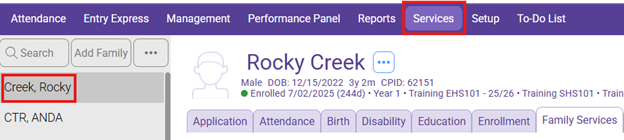
- Click on Family Services Tab
2. Click on Add Event

3. Select Home Visits
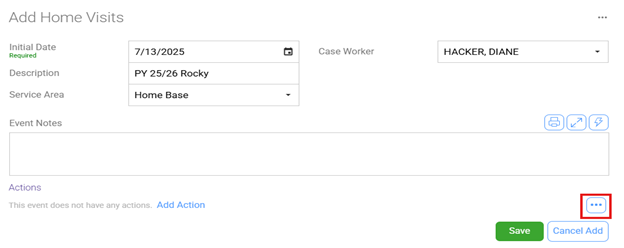
4. Initial Date: Date of first home visit
5. Description: PY (current school year) & Name of child (PY 25/26 Rocky)
6. Service Area: Home Base
7. Case Worker: Your Name
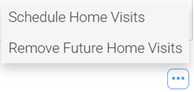
8. Click on the 3 dots in the bottom right corner and then Schedule Home Visits
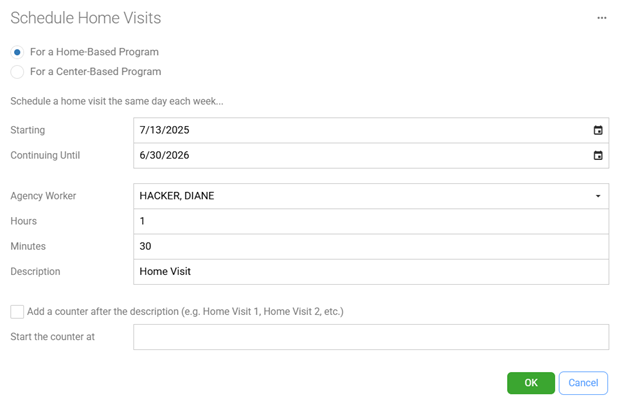
9. Select For a Home-Based Program
10. Starting: Enter the date of your first home visit
11. Continuing Until: Enter the date of the last day of the current program
12. Agency Worker: Choose your name from the drop down
13. Hours: Enter 1
14. Minutes: Enter 30
15. Description: Home Visit.
16. Ensure there is NO checkmark in the “Add a counter after the description” box.
17. Start The Counter At: Leave blank
18. Click OK
19. Find the Home Visits that fall during the week of Thanksgiving, the two weeks during Winter Break and Spring break and delete. These are found by scrolling down on the home visit event window.

Click on the action you want to delete, click the 3 dots in the corner and select delete.
A prompt asking, Are you sure you want to delete this action? Ensure this is the week you want to delete and select 

20. Click Save