
8.1.1.22
Entering Immunizations in Childplus
Children must be up to date on Immunizations before starting in the classroom
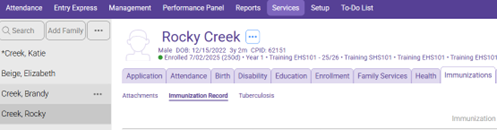
Select The Participant from the Participants List In the Services Tab
Click On the Immunizations Section of Services, then click on the Immunization Record section
Select The Edit Button At the Top Right
Select the Immunization Status At Enrollment Dropdown Boxes To the Right of the Current Year
Select the appropriate code for status At Enrollment and End of Enrollment:
- Completed all for age – child has received all required vaccinations for their age
- Exempt/Waiver – child has a medical exemption
- Not received all/Past due – child is missing vaccinations for their age
- Up to date all possible for age/behind – child is behind on vaccinations but is as up to date as possible at this time
Select Responsible Staff – Ensure the family services workers name is selected
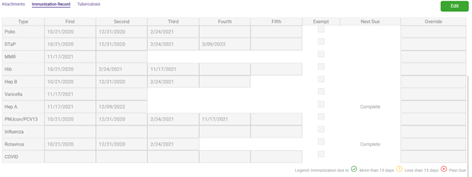
Enter all the immunization dates for each immunization.
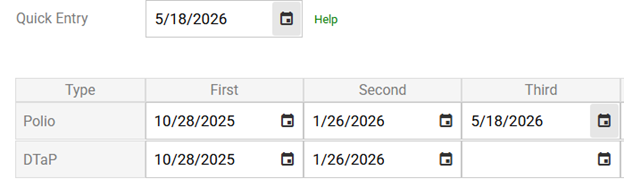
For multiple immunizations completed on the same date, use the quick entry feature.
- Enter a date in the Quick Entry field.
- Click or tap the name of the vaccine in the Type column. ChildPlus automatically populates the first empty date field with the date you provided in the Quick Entry field.
- Repeat steps 1-2 for each new date and vaccine, if applicable.
- Click or tap Save.
Tip: if you have access to the child’s blue card, use the blue card to transcribe the dates into Child Plus.
Use the Override Column to enter due dates for future immunizations that will be due. As future immunizations are completed, be sure to delete Override dates to remove them from your to-do list. Refer to S.O.P 5.1.1- Prior To Day 1
Use the Immunization Notes sections to add any notes, follow up, or pertinent information.