
8.1.4.2
2025 – Enrollment Priority Listing
Run this report when you need to review your Waitlist
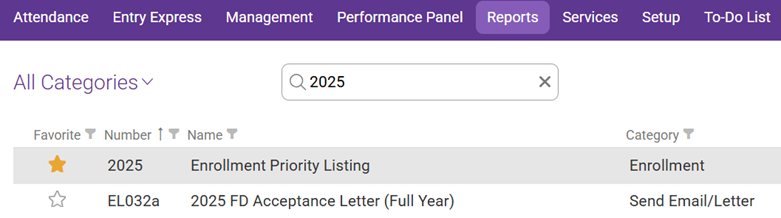
In the Reports tab, use the search bar to find CP Report 2025 and Select Report named 2025 Enrollment Priority Listing
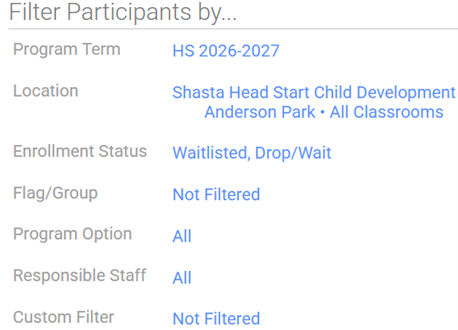
FILTER PARTICIPANTS BY:
- Program Term: “Your Program” (EHS or HS) and current program year
- Location: Shasta Head Start Child Development, “Your Site”, and “All Classrooms”
- Enrollment Status: Waitlisted, Drop/Wait
- Flag/Group: Not Filtered
- Program Option: All
- Responsible Staff: All
- Custom Filter: Not Filtered
OTHER FILTERS AND OPTIONS
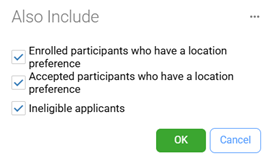
For the “Also Include” section, check the following boxes and click “OK”
- Enrolled participants who have a location preference
- Accepted participants who have a location preference
- Ineligible applicants
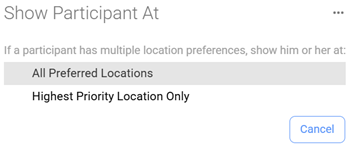
For the “Show Participant At” section, select the following:
- All Preferred Locations
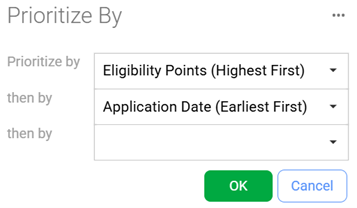
For the “Prioritize By” section select the following and click “OK”
- Eligibility Points (Highest First)
- Application Date (Earliest First)
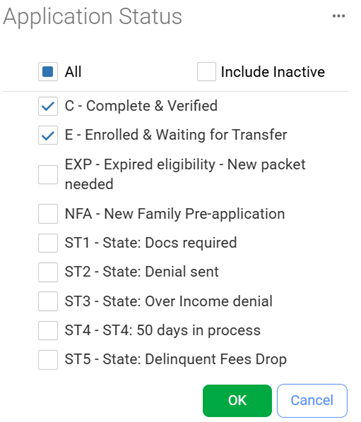
For the “Application Status” section, select the following boxes and click “OK”
- C-Complete & Verified &
- E-Enrolled & Waiting for Transfer
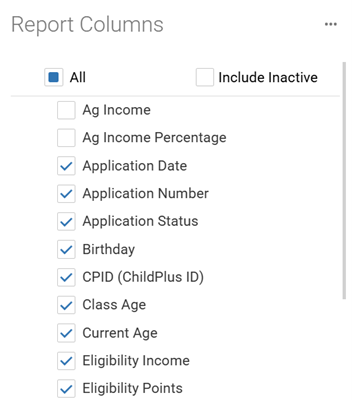
For the “Report Columns” section, ensure the following boxes are UNCHECKED and click “OK”
- Ag Income
- Ag Income Percentage
- M/S Initial Eligibility Status
- M/S Initial Enrollment Status
- Migrant/Seasonal Eligibility Status

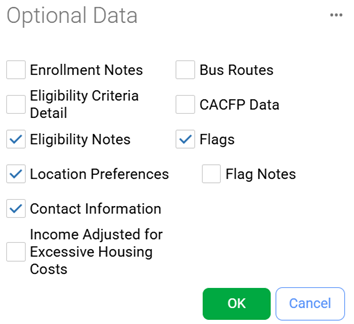
For the “Optional Data” section, select the following boxes and click “OK”
- Eligibility Notes
- Location Preferences
- Contact Information
- Flags
FORMATTING
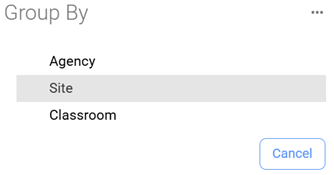
For the “Group By” section, select the following:
- Site
- Gridlines

After confirming these selections, click “View”