8.1.4.20
Reviewing Family Services Event Monitoring
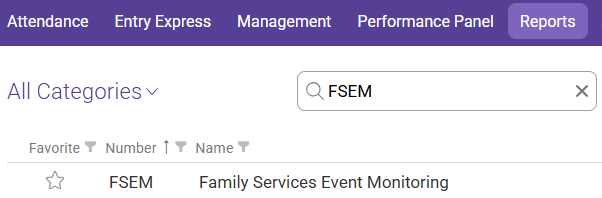
In the Search Reports tab enter FSEM and select FSEM – Family Services Event Monitoring
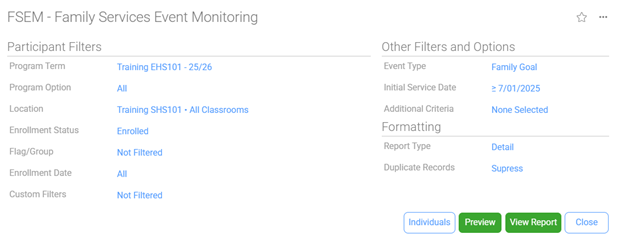
Choose the Appropriate options for your caseload.
Participant Filters
Program Term: “Your Program” (EHS/HS) and current program year
Program Option: All
Location: Shasta Head Start Child Development, Your Site, Your Classroom
Enrollment Status: Enrolled
Flag/Group: Not Filtered
Enrollment Date: All
Custom Filter: Not Filtered
Other Filters and Options
Event Type: Family Goal
Initial Service Date: Select “Between” and enter 7/1 (Current Program Year) in the first date box and leave the second date box blank
Additional Criteria: None Selected
Formatting
Report Type: Detail
Duplicate Records: Suppress
Select View Report
You will be able to see multiple lines of data at once (pictured below), . This report is used to identify data entry errors for the Family Goal ChildPlus entry.

Missing Data
If there is a blank space on your list in the “Issue Code Description” column, you must look at your caseload entries to fill in the missing “Issue Code Description”. An example of this error is pictured in the image above – see the highlighted cell.
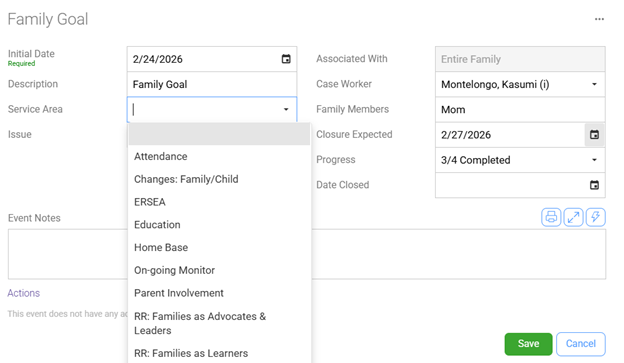
- Go to the Services module
- Click on “Family Services” and go to the Events tab
- Select the appropriate “Family Goal” with the missing service area or issue. Under “Service Area”, select “RR: PFCE Outcome 1-7” that corresponds to the goal.
- Under “Issue”, select the Family Assessment question that connects with the established goal.
If there is a blank space on your list in the “Progress Code Description” column (should be, “started”, “1/4 completed”, etc.), you must look at your caseload entries to fill in the missing “Progress Code”.
Look under the Family Services Module -> “Family Services – Events” -> “Family Goals” for the missing progress code. In the “Progress” dropdown box, select the appropriate code to indicate goal completion status (e.g., “started”, “1/4 completed”, “1/2 completed, etc.”