
8.7.2
Entering Home Visits CP
Select The Participant from the Participants List In the Services Tab
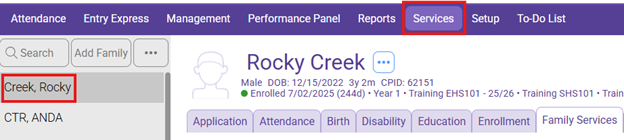
- After completion of each Weekly Home Visit, open the initial Home Visits Event entered as shown in 8.7.1 Scheduling Home Visits in CP found in the Family Services Tab.

2. Under Actions, select the date of the visit you completed to update the action
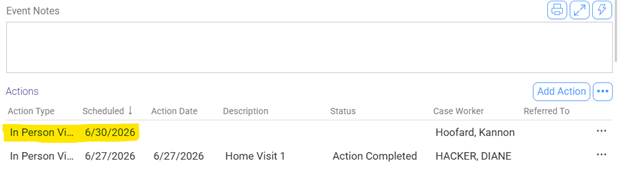
3. Action Type: If your visit was completed, select “In Person Visit”. If your visit was cancelled by the Home Visitor or the Family, select “Direct (i)”
4. Scheduled: Leave the date that was initially entered
5. Action Date: Date of actual home visit
6. Type of Contact: Home Visit
7. Description: Enter Home Visit, and the home visit number you completed (ex. Home Visit 1, Home Visit 2, etc)
8. Status: Choose the appropriate option
-
-
- Action Completed
- Family Cancelled, enter reason in action notes (If visit was cancelled indicate what type of visit would have taken place)
- No Show
- Staff Cancelled, enter reason in action notes (If visit was cancelled indicate what type of visit would have taken place)
-
9. Case Worker: Ensure your name is entered
10. Hours: Enter actual home visit time if different than 1 hour
11. Minutes: Enter actual home visit time if different than 30 minutes
12. Click Ok

13. Click Save
The Home Visit completed will move to the top of the list.