
8.6.03
Family Demographics
Family Demographics – Child Information
This information is found on the Family Demographics form that is completed during Enrollment. This information must be entered within 3 business days of completing the Enrollment or prior to the child’s entry date.
Select the Participant from the Participants List in the Services Tab, select the Application Tab, then select the enrolled Participant’s name.

Ensure the enrolled child’s Birthday and Gender are correct.
Enter the enrolled child’s Race and/or Ethnicity Status using the dropdown arrow, multiple options can be selected
If 2 or more Race and/or Ethnicity(s) are chosen, the Multiracial and/or Multiethnic Yes or No status will change

If unsure what Race and/or Ethnicity a Participant (enrolled child) may be, use the key below.
American Indian or Alaska Native
Navajo Nation, Blackfeet Tribe of the Blackfeet Indian Reservation of Montana, Native Village of Barrow Inupiat Traditional Government, Nome Eskimo Community, Aztec, Maya, etc.
Asian
Chinese, Asian Indian, Filipino, Vietnamese, Korean, Japanese, Another group (for example, Pakistani, Hmong, Afghan, etc.)
Black or African American
African American, Jamaican, Haitian, Nigerian, Ethiopian, Somali, Another group (for example, Trinidadian and Tobagonian, Ghanian, Congolese, etc.)
Hispanic or Latino
Mexican, Puerto Rican, Salvadoran, Cuban, Dominican, Guatemalan, Another group (for example, Colombian, Honduran, Spaniard, etc.)
Middle Eastern or North African
Lebanese, Iranian, Egyptian, Syrian, Iraqi, Israeli, Another group (for example, Moroccan, Yemeni, Kurdish, etc.)
Native Hawaiian or Pacific Islander
Native Hawaiian, Samoan, Chamorro, Tongan, Fijian, Marshallese, Another group (for example, Chuukese, Palauan, Tahitian, etc.)
White
English, German, Irish, Italian, Polish, Scottish, Another group (for example, French, Swedish, Norwegian, etc.)
Scroll down the window until you reach the Languages section
Enter all information displayed in each dropdown box
1.English Proficiency –
2.Other Language (If Applicable)
If “Other Language” is selected, a “Proficiency” box will appear below. Select the proficiency level for the designated language.
- Other Language (If the child has a third language) if not, leave blank
4.(Other Language) Proficiency if child speaks a third language, if not, leave blank
5.Primary Language – select the child’s primary language.
6.Click Save

Primary Language of Family at Home
Scroll down to Family Information
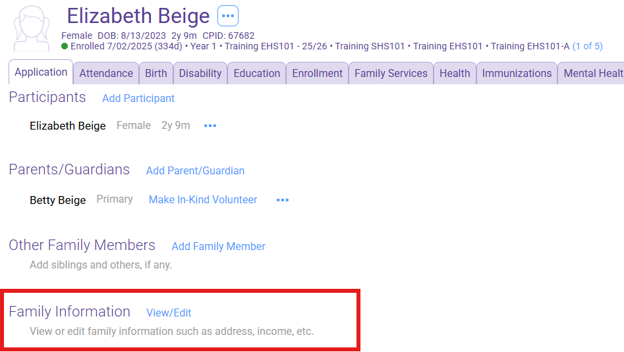
Click View/Edit
Scroll down to Languages

Select the appropriate language from the “Primary Language at Home” drop down box.
If English is selected, answer Yes or No to “Acquiring/Learning another language in addition to English” box
If a language other than English is selected the “Acquiring/Learning another language in addition to English” box will not appear.

Family Demographics – Parent Information
In the Parents/Guardians section, select the Primary Adult’s name. If the Primary or Secondary Adult has been enrolled as “Prenatal” at any time, their name will appear under the Participants section.
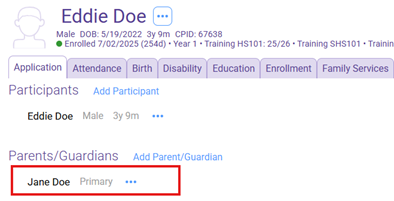
Ensure the Parent/Guardian listed has the correct Birthday and Gender entered. Scroll down to the Individuals Address Section.
Lives With Family: Select Yes or No to indicate whether the enrolled child lives with this parent/guardian.
If you select “No,” an additional field will appear prompting you to enter information about where this family member lives.

Scroll down to Employment Section
Add The Employment Status at Enrollment and Present Employment Status.
These are the same entry however, the Present Employment Status may change throughout the program year.

Leave all other boxes blank
Scroll down to Education and Training Section
Under the Education and Training Section, use the dropdown arrow to add the Highest Grade Completed.
Leave all other boxes blank

Click save
If Secondary Adult exists, complete the above steps for the Secondary Adult
Family Information – Languages
In the Family Information section, click on the blue View/Edit button

Scroll down until you reach the Languages Section. Answer the questions below using the dropdown arrows.
Primary Language at Home (What Language does your child hear at home?)
Acquiring/Learning another language in addition to English box will appear if Primary language is English

If English is not the primary language, the option “Acquiring/Learning another language in addition to English” will not appear.
Click Save