
8.6.02
Entering or updating Phone, Address, and Emergency Contacts
(Information comes from the Emergency Card and must be entered within 3 days of the enrollment meeting or prior to the child’s entry date)
Select The Participant from the Participants List in the Services Tab
Click on the Application Tab
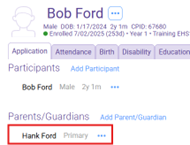
To add/edit phone numbers for the Primary or Secondary Adult, click on their name under Parents/Guardians.
If the Primary or Secondary Adult has been enrolled as “Prenatal” at any time, their name will appear under the Participants section.
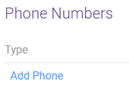
Scroll down to the Phone Numbers Section. If the number(s) listed is correct no action is required. If the phone number(s) is no longer correct, edit the existing phone number in the box or click on the blue “Delete” button.
Click the blue “Add Phone” button to enter a new or add an additional phone number
If adding a new phone number, fill in the information as follows:
Type: From the dropdown list, select the device type
Number: Enter the complete phone number, including area code
Note: You can add the Parents/Guardians name if it is a personal cell phone number
Primary opt In For Texts: Check or uncheck the box based on parents choice and select “Yes” from the drop down box. If parent does not Opt-In for Texts, leave blank
Click save
Adding/ Editing Address Information
To Enter or update the Address
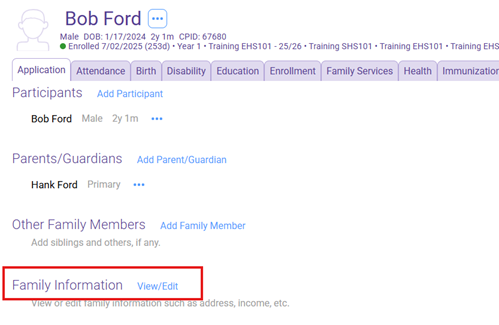
Scroll down to the Family Information section, click View/Edit
Scroll down to Family Living Address
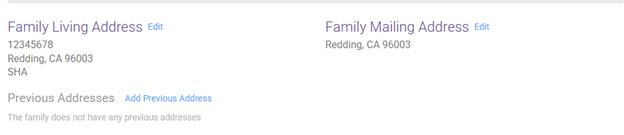
To add or update current address, if needed
Click “Edit” next to the Family Living Adress and select “Add New Address” to enter a new address, different from the current address or “Edit Current Address” to correct the existing address if needed.
Click Save
Enter or update mailing address
Click on Edit to the right of “Family Mailing Address” if no mailing address is listed , select “Add New Address”. Check the box “Same as Living Address” if it applies.
If mailing address is different from physical, enter the mailing address
Click Save.
Adding/Editing Emergency Contacts
Emergency contacts information is found on the Emergency Card.
Select the Participant (Under Participants) you wish to add/change Emergency Contact info for
Scroll down to Emergency Contacts section
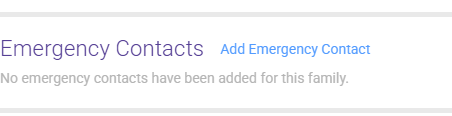
- Click “Add Emergency Contact”.
- Fill in all information available (Name and phone number).
- Click the Emergency Contact and Release To boxes.
- Click “Save”
If you need to add additional Emergency Contacts, complete the above steps 1-4 until all Emergency Contacts have been added.
***IMPORTANT NOTE*** If there are Emergency Contacts in CP from the previous year, etc. that are not listed on the current Emergency Card, you must delete those contacts. The Emergency Contact list must match the current Emergency Card.