8.1.2.5
Entering Family Assessment in ChildPlus
- Family Services staff must complete the Family Assessment within 90 days of entry and enter within 3 days of completion.
- To enter the Family Assessment:
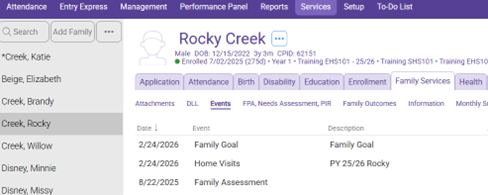
- Select The Participant from the Participants List in the Services Tab, select the Family Services Tab, and then select the Events section
- Click ADD EVENT
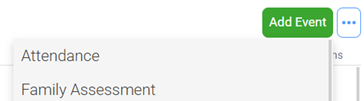
- Select Family Assessment
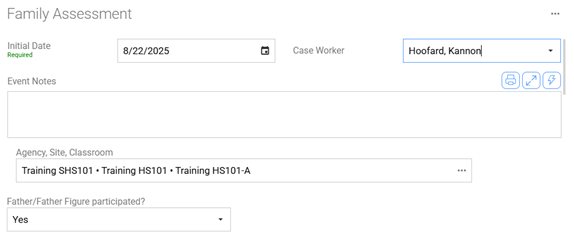
Initial Date: Date of the Assessment
Case Worker: From the dropdown menu, select the name of the Family Services staff member who completed the assessment
Agency, Site, & Classroom: Select the agency, site, and classroom where the child/family is enrolled
If a father/father figure (e.g., uncle, grandpa, boyfriend, etc.) participated in completion of the assessment, check the box labeled “Father Figured Participated”
- Mark each box that the parent identifies as a preferred method of communication.

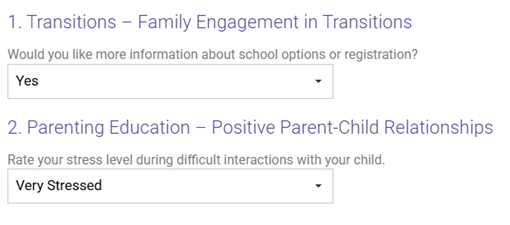
- Starting with question 1 – Transitions, enter the parent/guardians responses in the boxes. If the parent chooses not to answer a question, mark all applicable responses in that section as “Declined to Answer.” If the parent states that a question does not apply to them, mark all responses in that section as “NA”
- Scroll down or tab to the next question
- Continue entering the parent/guardians responses to the remaining questions.
Save the assessment.
The Data Systems Coordinator will enter each identified request for additional information or support as an “Event” in ChildPlus.
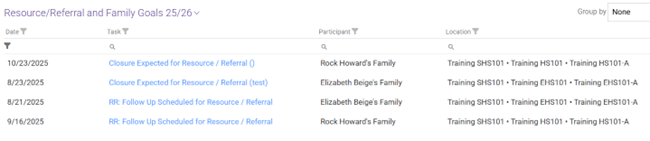
In addition, the coordinator will schedule an “Action – Resource Offered” and an “Action – RR: Follow Up.” These scheduled Actions will appear on the 06_Resource/Referral To Do List.