
8.2.02
CP Create a New Family Record: Social Service Team
Create a New Family Record: Social Service Team
The ERSEA team is usually responsible for creating new family records in ChildPlus. Social Service staff may need to enter a new family if the child changes family in the middle of the year and you cannot find this family in ChildPlus using the wl2012 (username/password) ChildPlus account.
Only add the members of a new family (such as new foster parents), who do not already exist in ChildPlus, through this function. After all family members and their demographics have been entered and saved, the system will open the family record in the Application module. At this point you can locate family members who already exist in ChildPlus and add them to the new family as needed.
Note: Throughout these instructions, fields marked with an asterisk (*) require entry to comply with federal data-gathering requirements. In ChildPlus they are marked with the acronym “PIR,” which stands for Program Information Report. Usually the Family Worker or Home Visitor is responsible for maintaining the family’s PIR data on enrolled children.
Create the Initial Family Record
- Click the Add Family button above the Participants List.

When entering a new family record, begin by entering the information about the primary adult. This is the child’s new primary guardian.
- In the Add New Family window, enter the following:
- In the Adult or Child field, select “Primary Adult.”
- In the Applicant field, select “Non-Applicant.”
- The person’s First, Middle, and Last
- The primary adult’s Birthday and
- Update the primary adult’s English Proficiency as needed. Add Other Language and Proficiency as needed.
- Child’s Relationship to the primary adult, and whether he or she has Custody.
- Complete the Highest Grade* and Employment* fields for the Primary and Secondary Adults.
In the Add a Family Member section, select the next family member to be added to the family record. Then complete the following fields:

- Select “Non-Applicant.”
- The person’s First, Middle, and Last
- Birthday and
- English Proficiency.
- Other Language.
- Scroll down to the Add a Family Member section again, and continue to add each family member to the family record.
- When you have added all members except any existing child(ren), click the Save and Close The system will open the new family in the Application module.
- Refer to the ChildPlus instructions to add existing children to a family. [Link to CP: CP-Place Child Under Two Family Records]
Enter Family Information – Application Module
- Once you have added all the family members to the family record, return to the top of the page in the Family Members section, and click the Family Information You will have obtained this information from the family and/or documentation received telling you the child has changed family.

- On the Family Information tab, complete section General Information.
- Select the Parental Status and Primary Language at Home from the drop-down lists.
Note: Parental Status refers to the primary or legal guardian, who is supporting the enrolling child and living in the home with them. If a couple is not married and one of them is not the biological parent or legal guardian, select “One Parent Family.”
- In the Number in Family field, enter the number of family members.

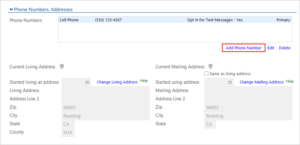
- Complete section Phone Numbers, Addresses.
- Click Add Phone Number.

- Enter the Phone Number, Type of Phone, and if applicable, a Note. Note which phone number is Primary.
- Select whether the family chooses to Opt in for Text Messages for cell phones.
- Click either Save and Add Another, or Save.
Note: Enter all phone numbers provided by the family.

- Click Change Living Address and select Add New Address.
- Enter Living Address, Zip, City, State, and County.
Note: The date field is not required for new families. It is used when an existing family moves.
- If you need to enter a separate mailing address, deselect the checkbox Same as living address and enter the mailing address in the fields provided.
- Complete section Family Income.
- Select whether the family has current TANF Status and/or Supplemental Security Income. This information is located on the Demographics form or the Health Developmental Needs Assessment (HDNA).

14. When you have finished, click Save in the upper right corner of the screen
