
8.1.4.19
Family Assessment Heat Map
Report Purpose:
- Verify who has completed the Family Assessment (FA), the completion date, and that the FA has been entered into ChildPlus (CP).
- Confirm that FA data entry is accurate and that all required fields are complete.
- Track families who have requested additional resources, referrals, or direct services so appropriate support can be offered.
- Monitor follow-up on requested resources, referrals, or direct services.
- Identify common topics families are requesting and incorporate those topics into Parent Center Committee Meetings (PCCM).
How to run the FAHM
Go to ChildPlus Desktop.
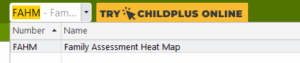
- Select the Reports module and type “FAHM’
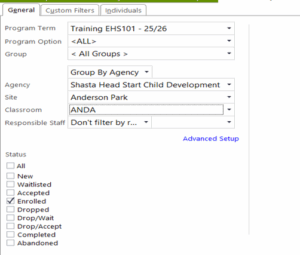
2. Fill in the Data as Instructed:
Program Term: EHS or HS (current Year)
Program Option: ALL
Group: <All Groups>
Group By: Agency
Agency: Shasta Head Start Child Development
Site: Your Site you oversee
Classroom: Your Classrooms you oversee
Responsible Staff: Don’t filter by responsible staff
Status: Enrolled
Filter Criteria: The first day of the program year (or first day the participant is enrolled) – The day you are running the report.
3. Select Preview

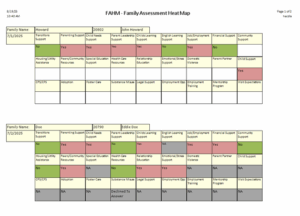
You can review all Family Assessments entered and use this tool to identify topics that may require a Resource/Referral (RR).
- Green or Gray: No action needed — the parent has indicated they are not interested in further resources at this time.
- Blank/White: Go back to the Family Assessment Event and enter the missing data.
- Red: The family is requesting a resource, referral or direct service therefore an RR must be offered.
For detailed instructions on completing the Resource/Referral process, refer to SOP Documenting Resource/Referral Offered and Follow-Up.