
8.1.2.6
Documenting Resource/Referral Offered and Follow-Up
Resource/Referral or Direct Service offered:
- If a family expresses interest in additional support by answering “YES” to any of the highlighted red questions, staff must offer an appropriate referral, resource, or direct service.
- The Data Systems Coordinator (DSC) will document each family’s expressed interest of additional support by entering an “Event” in the Family Services module in ChildPlus. Additionally, the DSC will schedule an “Action – RR: Resource Offered” to prompt Family Services staff to provide a resource or referral. The DSC will also add a scheduled “Action – RR: Follow Up to remind staff to follow up on the resource, referral or direct service offered.
- There are four questions highlighted in Teal: Emergency/Crisis Intervention, Mental Health, Domestic Violence, and Substance Misuse Prevention and Treatment. These topics are an immediate need and as such, a resource, referral, or direct service must be provided as soon as possible. Follow-Up must be completed within three business days of offering the resource.
- Follow-up must be completed within one month of providing a resource, external referral, or direct service to a family. Record in ChildPlus, per SOP 8.1.2.6, whether the family utilized or declined the resource, referral, or direct service offered. (for example: family received food from Salvation Army).
Entering resources, referrals and direct service offered in ChildPlus
- Select Child from my Participants
- Select Family Service Tab
- Double click on the Resource/Referral Event you would like to update (this “Event” was created by the Data Systems Coordinator (DSC))
- Double click on the Action you would like to update (this “Action” was created by the Data Systems Coordinator (DSC))
- Action Type: Leave as RR: Resource Offered
- Scheduled: Leave date as previously entered
- Action Date: Enter the date the resource, referral or direct service was offered to the family
- Type of Contact: Leave blank
- Description: Enter a short description of the resource, referral or direct service that was offered (i.e., Salvation Army food distribution list)
- Status: RR: Family Accepted – Select this if the family accepts the resource, referral, or direct service offered.
- Status: RR: Family Declined Resource/Referral– Select this if the family is not interested in the resource or referral. No further action is required for this specific request. Go back to the original “Event” and add the date the family declined the resource, referral or direct service as the “Date Closed”
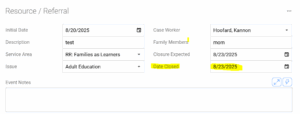 EVENT
EVENT
 ACTION
- Case Worker: Enter the Family Services staff name
- Click save
Entering Follow Up to resources, referrals or direct service offered in ChildPlus
- Select Child from my Participants
- Select Family Service Tab
- Double click on the Resource/Referral Event you would like to update (this “Event” was created by the Data Systems Coordinator (DSC))
- Double click on the Action you would like to update (this “Action” was created by the Data Systems Coordinator (DSC))
- Action Type: Leave as RR: Follow Up
- Scheduled: Leave date as previously entered
- Action Date: Enter the date you provided follow up to the resource, referral or direct service offered
- Type of Contact: Leave Blank
- Description: Provide a brief summary of the result or impact of the resource, referral or direct service offered (i.e., family received food from Salvation Army).
- Status RR: Follow Up Complete (at this point, the expectation of follow up is complete)
- Case Worker: Enter the Family Services staff name
- Click Save
- Return to the original “Event” fill in the “Date Closed” with the date you completed follow up
- Click Save again