
7.5.2.6
Viewing an Employee Record in Paycom
In an employee’s record you will find a wealth of helpful information: position & department, personal & emergency contacts, accrual balances, employee photo, time & attendance, performance history, PAF history, etc. The information is broken down into different “Forms” which make up an employee’s record/profile. You will have read-only access to the information of people who report directly or indirectly to you.
Navigating an Employee Record
- There are several ways to view an employee’s record in Paycom. The easiest way from the home screen in Paycom is to go to Employees à Make Employee Changes. To get to the Employee Record using the green menu bar at the top of the screen, hover over “Employees” and select Make Employee Changes to navigate to your “Employee Listing”.

Additionally, you can navigate to the “Employees” portion on your home screen. Click on Make Employee Changes to navigate to your “Employee Listing”.

- You should now see your “Employee Listing” that contains all the employees you supervise directly or indirectly. You may need to change the filter at the top of the screen. The most common filter is “Active and On Leave Employees”. Select an employee to view the “Employee Menu”.

- From the “Employee Menu” you can either navigate to a specific form or you can click View Full Profile to see a quick snapshot of information (address, hire date, primary emergency contact, etc.).

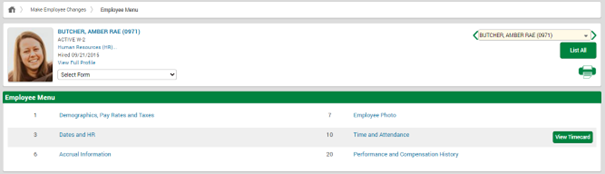
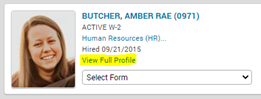
To navigate to each individual Form from the “Employee Menu”, you can use the drop-down box to select the appropriate Form or you can select the Form from the menu directly.

- Once in a specific Form, you can navigate to other Forms by using the drop-down box or going back to the “Employee Menu”.

- There are several ways to navigate to a different employee. Select Make Employee Changes to go back to Step 1.

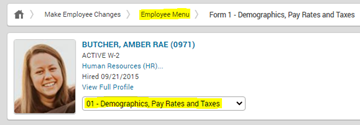

You could also use the arrows (< >) to navigate to the previous/next employee, type/select a name in the drop-down menu, or click List All to navigate back to your “Employee Listing”.

Employee Record Breakdown
Form 1 Demographics, Pay Rates and Taxes
- Demographic Information
- Full Name
- Employee Status
- Department
- Position
- Phone Number(s)
- Home Address
- Custom Fields
- Weeks/Year
- CCL Clearance Number
- CA Driver License Number
- Vaccination Dates
Form 3 Dates and HR
- Employee Dates
- Hire Date
- Termination Date, Reason, & Type
- Rehire Date
- Birth Date
- Last Pay Change
- Last Review & Next Review
- Other Misc. Dates
- Contact Information
- Emergency Contacts
- Work Email
- Personal Email
- Organizational Relationships
- Supervisors
Form 6 Accrual Information
- Accruals Summary
- PTO Balance
- Paid Sick Leave Balance
Form 7 Employee Photo
- Employee’s Photo (edited via HR)
Form 10 Time and Attendance
- View Timecard
- Pay Class
- Schedule Group
- Badge (Clock) Number
Form 20 Performance and Compensation History
- Employee History
- PAF History
- Performance Discussion History
- Discipline
- Evaluations