
7.5.3.1.1
Benefits Enrollment
Log into Paycom Employee Self Service at Paycom.com. If you do not know your login credentials, reach out to the HR Department (ext. 1100).

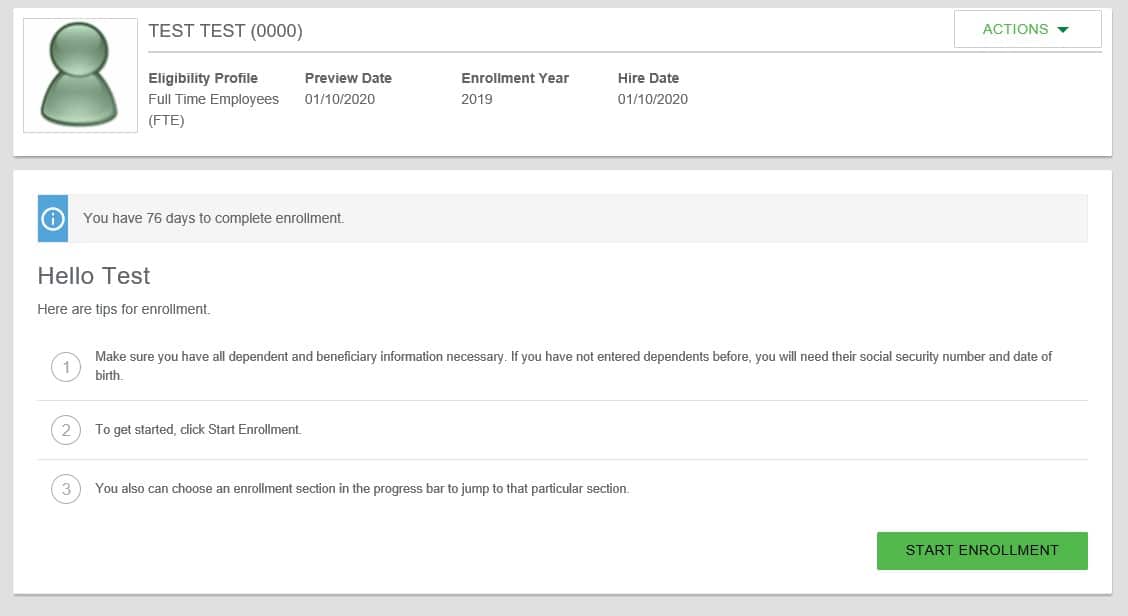
Click on “2019 Benefits Enrollment” in the Benefits Tile.
Note: the year will change depending on when you are enrolling.

Click the “START ENROLLMENT” button.
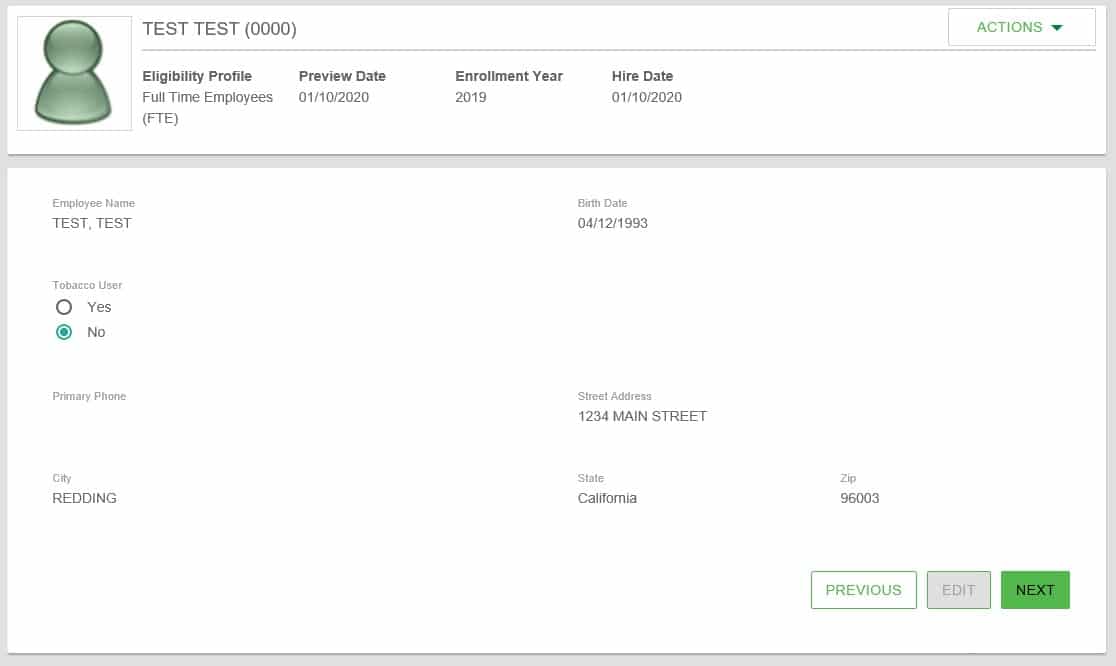
Confirm that contact information on this screen is correct and select “Yes” or “No” under “Tobacco User”. Click “NEXT”.
Click the “ADD” button to enter dependent and beneficiary names and information. Click the “SAVE AND NEXT” button when complete.
Note: If no dependents are added in this screen, you will not be able to enroll in plans with dependent coverage. If you see your current dependents listed, you do not need to add them in the system again.

If you wish to enroll in medical coverage, check the box next to “SHS Medical 3000” and select the desired coverage. Click the “ENROLL” button to continue. If you wish to decline medical coverage, click the box next to “Decline Coverage” and select a reason on the next screen. Then click the “DECLINE” button.

If you selected to enroll in a medical coverage plan, you will have the option to enroll in a Health Savings Account (HSA). Simply check the box next to “Health Savings Account” then pick a contribution level and amount. Click “ENROLL” when complete. If you do not wish to participate in an HSA, simply click “SKIP”.
Note: if you elected employee only medical coverage, you will only be able to select “Individual” for the contribution level.

Check the box next to “Sunlife Dental” and select the desired plan if you wish to enroll in dental coverage. Click the “ENROLL” button to continue. If you wish to decline dental coverage, click the box next to “Decline Coverage” then click the “DECLINE” button.

Check the box next to “VSP Vision” and select the desired plan if you wish to enroll in vision coverage. Click the “ENROLL” button to continue. If you wish to decline vision coverage, click the box next to “Decline Coverage” then click the “DECLINE” button.

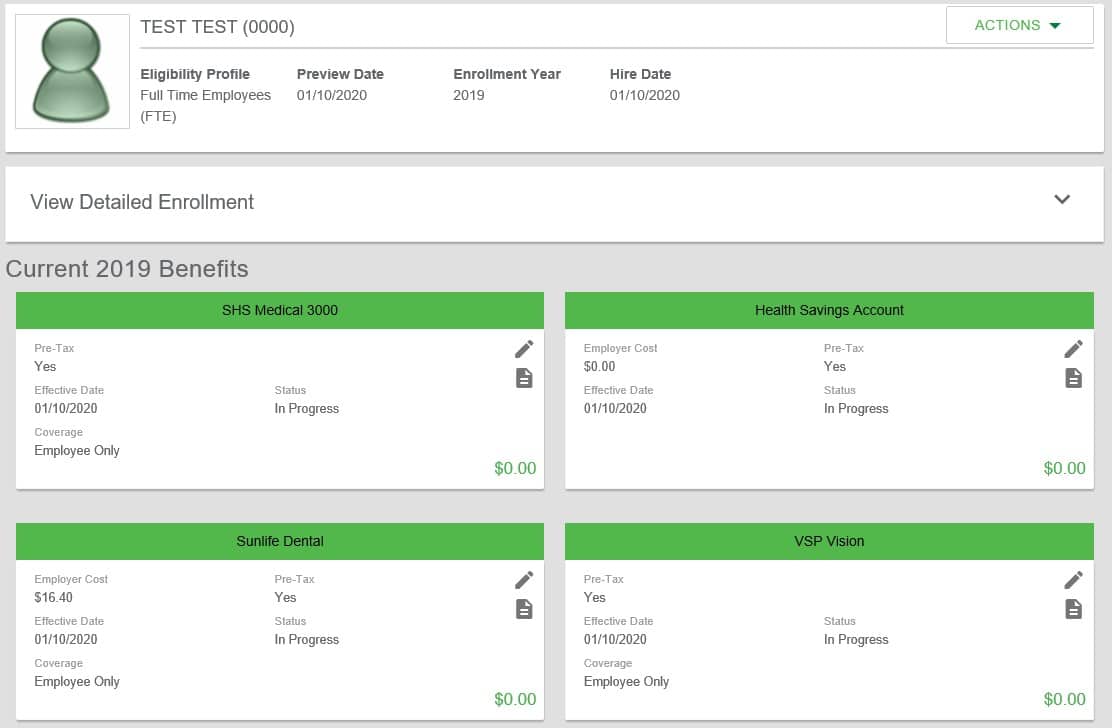
The next page will show a summary of your coverage. You can see detailed information by clicking the drop-down arrow found in the “View Detailed Enrollment” box.
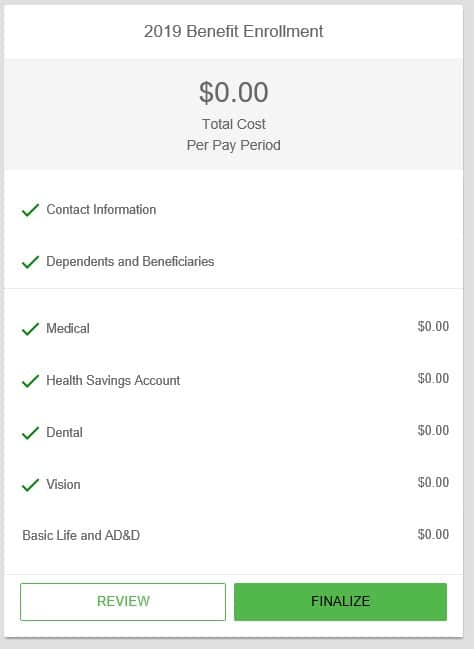
Click the “FINALIZE” button found in the benefits summary on the right side of your screen.
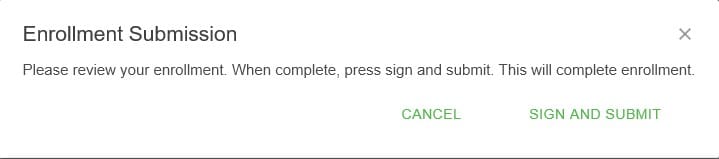
The following window should pop-up for final submission. If you need to make changes, click “CANCEL”. If not, simply click “SIGN AND SUBMIT”.
Congratulations, you’re done! *
*Well, almost. If you enrolled in an HSA, you have an additional step! (Trust us, it’s worth it!) You will have to open an account with The HSA Authority & Old National Bank. Your deductions will not come out of your check until an account has been created. For instructions, see “The HSA Authority Education & Enrollment Packet” in your benefit packet.
Important to Note:
- If you enrolled in medical coverage, your medical card will be mailed to you at the address on file. If you do not receive your card, please reach out to the HR Department to get a temporary card. At that time, HR will also request a new card be mailed to you.
- For both VSP Vision & Sunlife Dental, a card is not necessary, your (or your dependent’s) SSN will suffice. VSP does not utilize cards, so you will not receive one in the mail. Sunlife Dental does utilize a ‘card’ – you can find it in your benefit packet. If you need a new one, reach out to the HR Department.
If you have any questions or concerns during this enrollment process, reach out to the HR Department! You can reach us by phone (530.241.1036, ext. 1100) or email (hrdept@shskids.org).