Place a Child under Two Family Records
Place a Child under Two Family Records
When a child is temporarily in the care of a family other than their original family, the child’s record must reside under both family records to comply with Program Information Report (PIR) requirements.
Save a Child to a New Family Record
- On the Services tab, in the Participants list, click the primary adult’s name under whom the child currently resides.
Note: If the participant is not included in the list, click the Change List button. Alternatively, use the Search field above the list to locate the child.
- Click the Application
- Under the table containing a list of Family Members, click Add a Child.

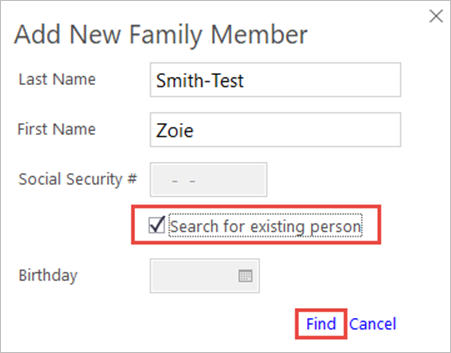
- In the Add New Family Member window, enter the child’s Last Name, and First Name. If you have them, enter the Social Security # and Birthday.
- Click the Search for existing person checkbox.
Note: If the child and family do not currently exist in ChildPlus, you will need to create a new family record for them. [Link to CP: CP-Create New Family Record]
- Click Find.
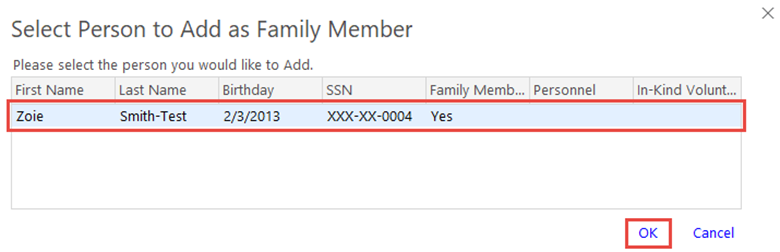
- Click on the child’s name in the Select Person to Add as Family Member.
- Click OK.
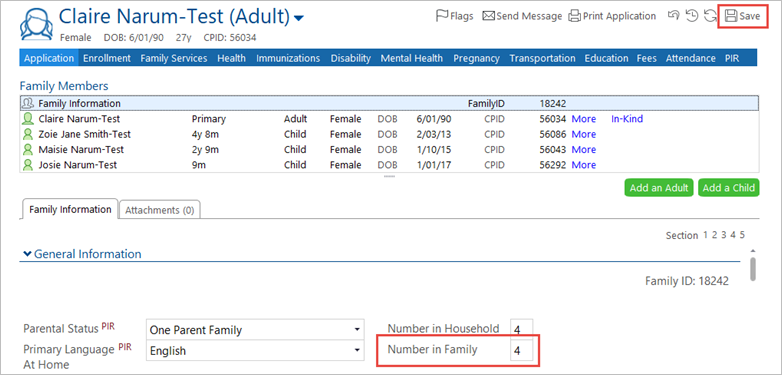
- In the Family Members section of the child’s record, click the Family Information

- On the Family Information tab in the General Information section, confirm that the Number in Family is correct.
- Click Save. The child now exists under both families.
Update the Child’s Living Address
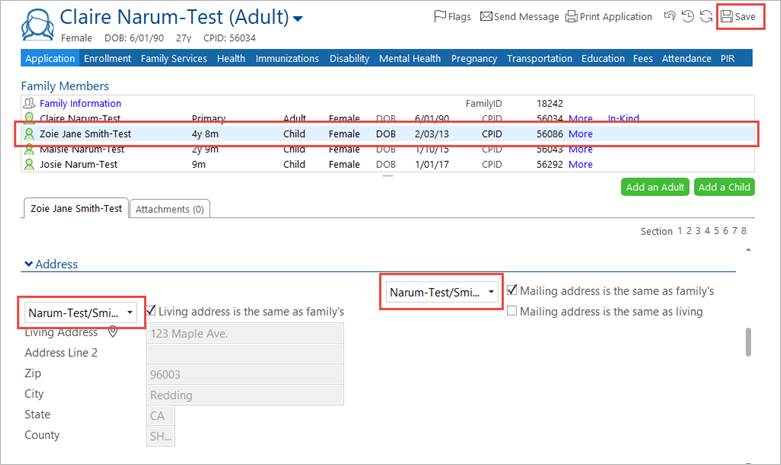
- Select the child’s name in the Family Members
- Scroll down to the Address
- In the two fields next to the Living address is the same as family’s and Mailing address is the same as family’s, click the drop-down list and select the two family names separated by a forward slash. This sets the child’s address to that of the primary adult with whom the child is currently residing.
- Click Save.