
Enter Pedestrian Safety Information
Enter Pedestrian Safety Information
The pedestrian safety information is required to be entered within 30 days of the child’s entry date into Head Start every program year.
Enter the Pedestrian Safety Record for an Individual Child
- Click the Services
- In the My Participants list, click the relevant child name.
Note: If the participant is not included in the list, click the Change Who Appears in This List button. Alternatively, use the Search for Family Members field to locate the child.
- Click the Health
- Click the Add Event

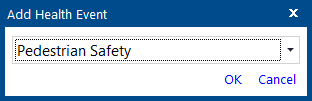
- In the Add Health Event window, select the event type “Pedestrian Safety” from the drop-down list.
- Click OK.
- Enter the date the training was completed in the Event Date
Note: This field is required as part of the Program Information Report (PIR) data Head Start is required to track.
- Select the Status “Completed” from the drop-down list.
Note: If you start typing “Completed” in this field, the correct status will display.
- In the Agency Worker field, select the Family Worker or Home Visitor.
Note: You can start typing your last name to locate it more quickly.
- Just above and to the right of the Event Details for this Pedestrian Safety section, click Save and Close.

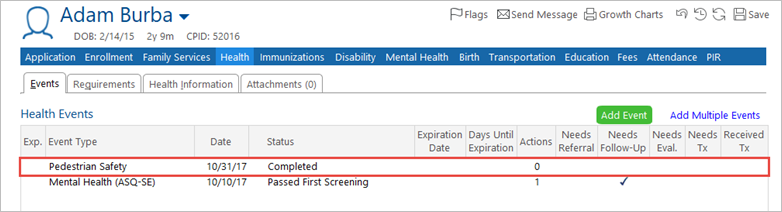
The event now appears in the list at the top of the screen and a checkmark displays in the Met Requirement column.
Enter the Pedestrian Safety Record for a Group of Children
You can add the Pedestrian Safety Record to a group of children by using the Entry Express tab.
- Click the Entry Express
- Click the Health

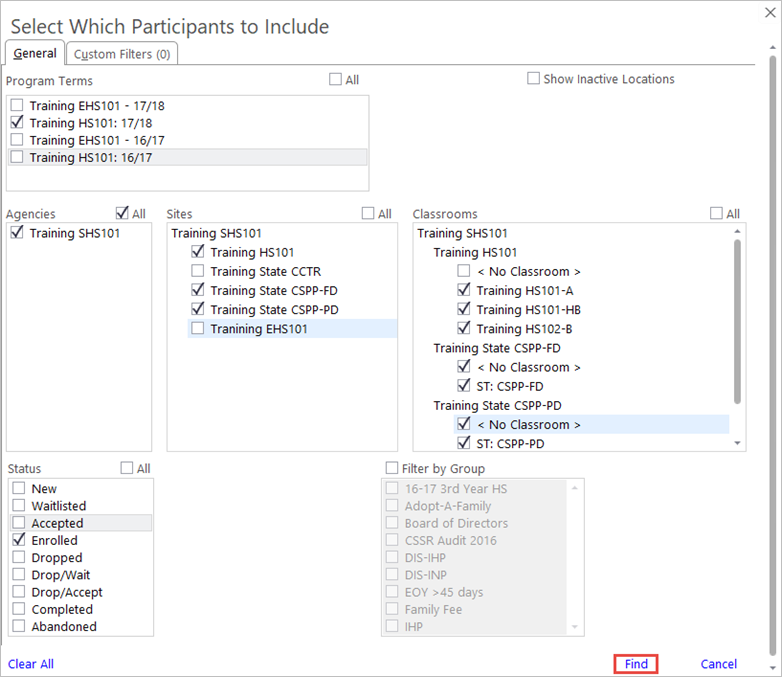
- Select the relevant Program and Year in the Program Terms
- Select the relevant Agencies, Sites and Classrooms.
- Select the Status “Enrolled.”
- Click Find
- In the Participants List on the right side of the screen, confirm that you have selected all the children who have received Pedestrian Safety training, and deselected any who have not.
- In the Event Type field, select “Pedestrian Safety” from the drop-down list.
- Enter the date of training in the Event Date
- Select the Status “Completed” from the drop-down list.
- Select the relevant Family Worker or Home Visitor from the drop-down list in the Agency Worker
- Click Next Step.

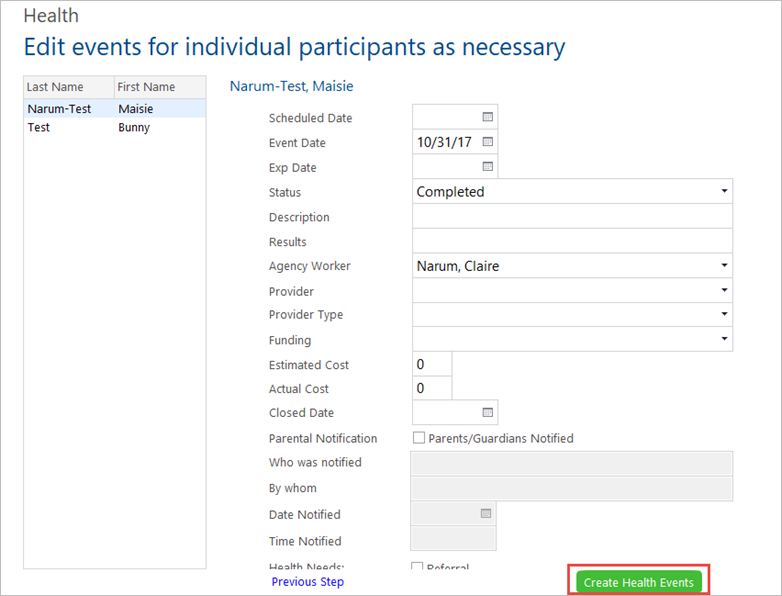
- If necessary, you can select the relevant child from the list of participants on the right, and modify the health event in the fields on the left as needed. For example, you might wish to change the date.
- Click Create Health Events button when finished.
- To complete the procedure, click OK in the confirmation message that displays.
