Run the 2025 Report
Run the 2025 Report
Use these instructions to run the 2025 report in ChildPlus to see who is on the waitlist.
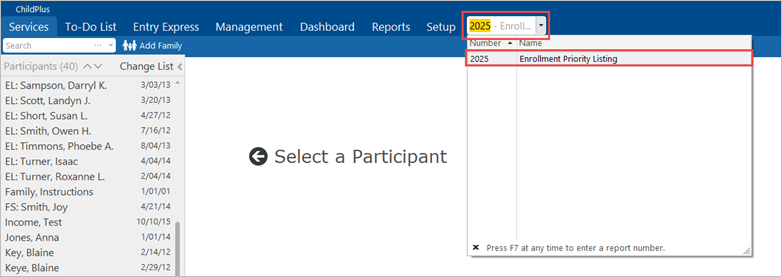
- In the Enter Report # field, type “2025.” Click on the report title: Enrollment Priority Listing.
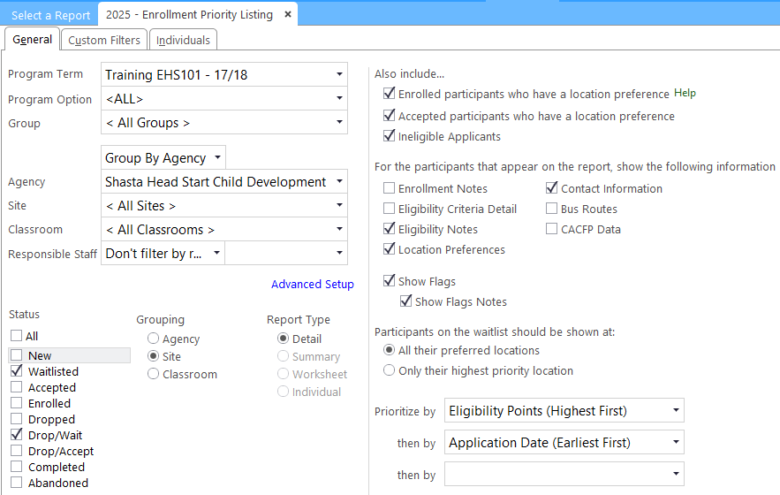
- In the Program Term field, select the relevant program year from the drop-down list.
- In the Program Option field, select “All.”
- In the Group field, select “All groups.”
- In the Agency field, select “Shasta Head Start Child Development.”
- Select the relevant Site.
- In the Classroom field, select “<All Classrooms>.”
Note: Children are not always assigned to a classroom when on the waitlist. Selecting “<All Classrooms>” ensures that you do not miss any children in your list. Be sure to look at all pages of this report.
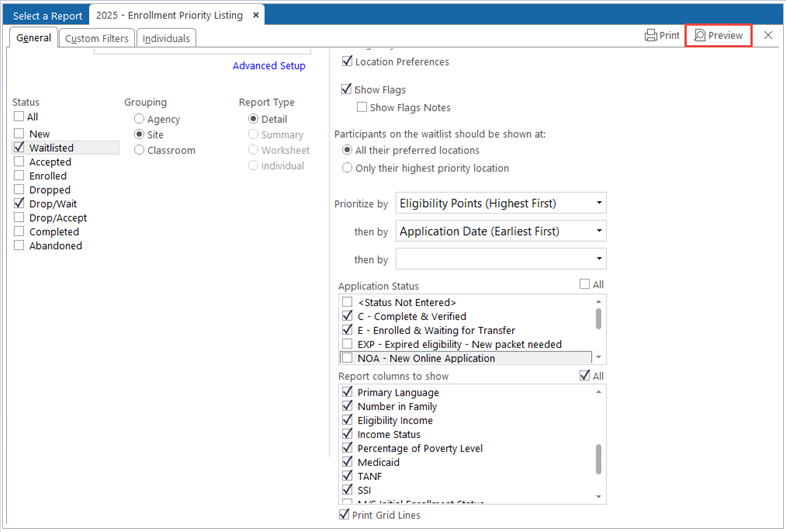
- In the Status section, select “Waitlisted” and “Drop/Wait.” Deselect any other options that are currently selected.
Note: You must contact the Family Worker or Home Visitor if you select a child already Accepted or Enrolled.
- In the Grouping section, select either “Site” or “Classroom.” If you group by classroom, each class will start on a new page.
- In the Report Type section, select “Detail.”
- In the Also include section on the right, select Enrolled Participants who have a location preference, Accepted Participants who have a location preference, and Ineligible Applicants.
Note: Ineligible Applicants must be selected to include families who are over-income, especially over-income families with disabilities. This selection also ensures that families outside of the service area and pregnant women are included.
- In the section For the participants that appear on the report, show the following information:, select:
- Eligibility Notes
- Location Preferences
- Contact Information
- In the section Participants on the waitlist should be shown at:, select All their preferred locations.
- In the Prioritize by field, select “Eligibility Points (Highest First)” from the drop-down list.
- In the Then by field, select “Application Date (Earliest First)” from the drop-down list.
- Leave the second Then by field blank.
Note: Never prioritize by “Last Name” when selecting a child for the program.
- In the Application Status section, select “Complete and Verified,” and “Enrolled & Waiting to Transfer.”
- Select the Report Columns you would like to display on the report. It is recommended that you select all columns through “SSI.”
Note: Always include the “Income Status” and “Percentage of Poverty Level.”
- Click the Preview button on the far right of the screen. The report displays the candidates with the highest points at the top, while over-income families are placed at the bottom.