
View an Attachment
View an Attachment
Locate an Attachment
- On the Services tab, in the Participants list, click the relevant person’s name.
Note: If the participant is not included in the list, click the Change List button. Alternatively, use the Search field above the list to locate the child.
- Click the relevant module.
Note: If you have selected the Application module and then selected the Family Information link, only Family attachments display. You will not be able to access attachments in other modules.
- Click the Attachments
- Select the relevant document from the list.
Note: The drop-down menu above the list of attachments allows you to select another module and view the attachments there as well.
- Click the View The attachment opens on a new screen.

Run the Participant Attachment Listing Report (#2132)
The Participant Attachment Listing Report can be run for a whole class, or for an individual, to review all the attachments available on each person’s ChildPlus record. We use it to confirm that all children in a class have their Eligibility Verification forms attached. We also run the report for an individual when we add a new enrollment record, to confirm all the proper attachments have been uploaded.
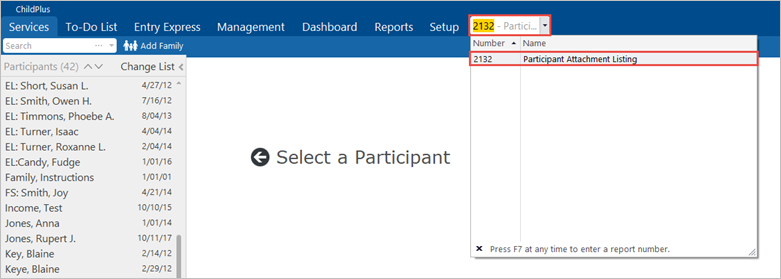
- In the Enter Report # field, type “2132.” Click on the report title: Participant Attachment Listing.
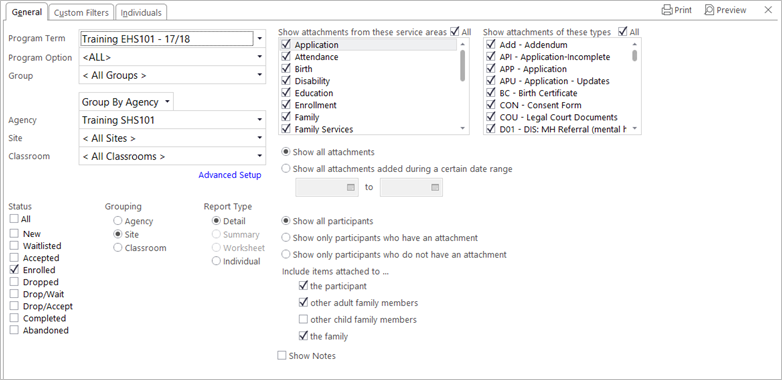
- Select the relevant Program Term, Group, Agency, Site and/or Classroom.
Note: If you would like to prepare the report only for certain individuals, select these criteria so that all the individuals will be included. In a later step you can select those for whom you wish to print the report.
- Select the relevant Status, Grouping, and Report Type.
- You can choose to show all attachments by clicking the All Alternatively, you can select the individual Modules or Attachment Types you wish to view.
- If you wish, you can choose to view attachments that occurred within a certain Date Range.
- Select whether you would like to Show all participants, Show only participants who have an attachment, or Show only participants who do not have an attachment.
- Select whether you would like to see attachments to the records of the participant, other adult family members, other child family members, or the family as a whole.
- Select whether you would like to Show Notes related to the attachments.
- If you would like to prepare the report only for certain individuals, click the Individuals
- Click the checkboxes to deselect any individuals you do not wish to include in the report.
Note: Click the All checkbox at the right corner of the list to select all individuals in the list. Deselect it to deselect all individuals in the list.
- Click Preview to review the report.

- Click the Save as PDF, Excel, etc. button to save the report.
- Click the Print button to print.
