Enter or Update a Family Doctor or Dentist
ChildPlus Instructions >
Enter or Update a Family Doctor or Dentist
Use these instructions to enter or update a family’s doctor or dentist in ChildPlus.
- On the Services tab, in the Participants list, click the relevant participant’s name.
Note: If the participant is not included in the list, click the Change List button. Alternatively, use the Search field above the list to locate the person.
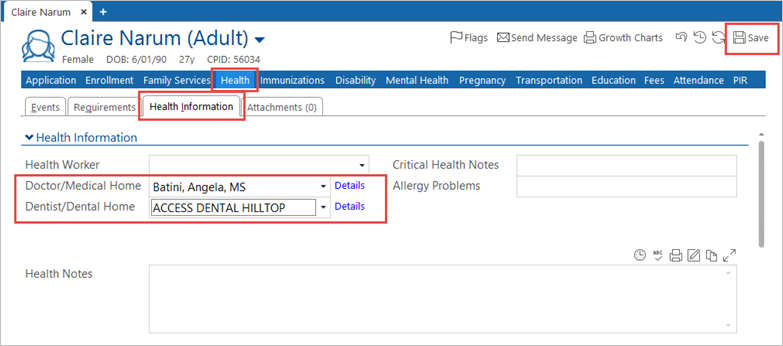
- Click the Health
- Click the Health Information
- Select the doctor from the Doctor/Medical Home drop-down list.
- Select the dentist from the Dentist/Dental Home drop-down list.
Note: If the doctor or dentist is not included in the list, contact the Health Clerk to have it added.
- Click Save when you have completed this section.