Enter and Update the Emergency Card Information
Enter and Update the Emergency Card Information
Enter Emergency Contacts
- On the Services tab, in the Participants list, click the relevant child’s name.
Note: If the participant is not included in the list, click the Change List button. Alternatively, use the Search field above the list to locate the child.
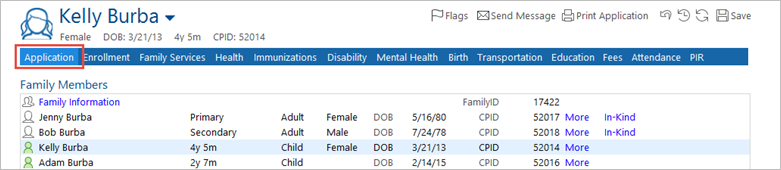
- On the participant’s record, click the Application
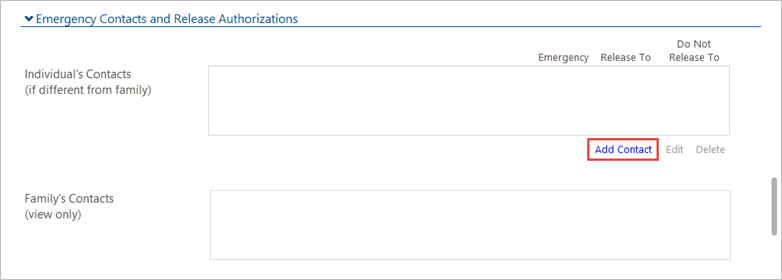
- Scroll to the Emergency Contacts and Release Authorizations
- Under the Individual’s Contacts field, click the Add Contact
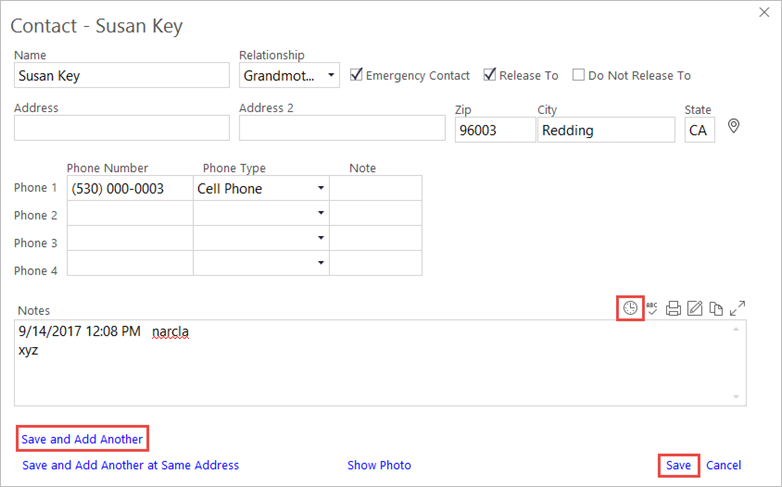
- Complete all contact information available.
Note: Please delete any old contact information if it was entered for a previous program year and is not listed on the current Emergency Card.
- Enter the Name and select his/her Relationship to the child.
- Click the Emergency Contact and Release To checkboxes if applicable.
- Enter the Address, Zip, City and State.
- Enter all Phone Numbers, select the Phone Types, and enter any Notes as needed.
- If necessary, you can add a Note at the bottom of the screen. First, click the clock icon above the Note field to include a date/time stamp.
- If you need to add another contact, click the Save and Add Another link on the left side.
- Once you have entered all contacts, click the Save link on the right side.